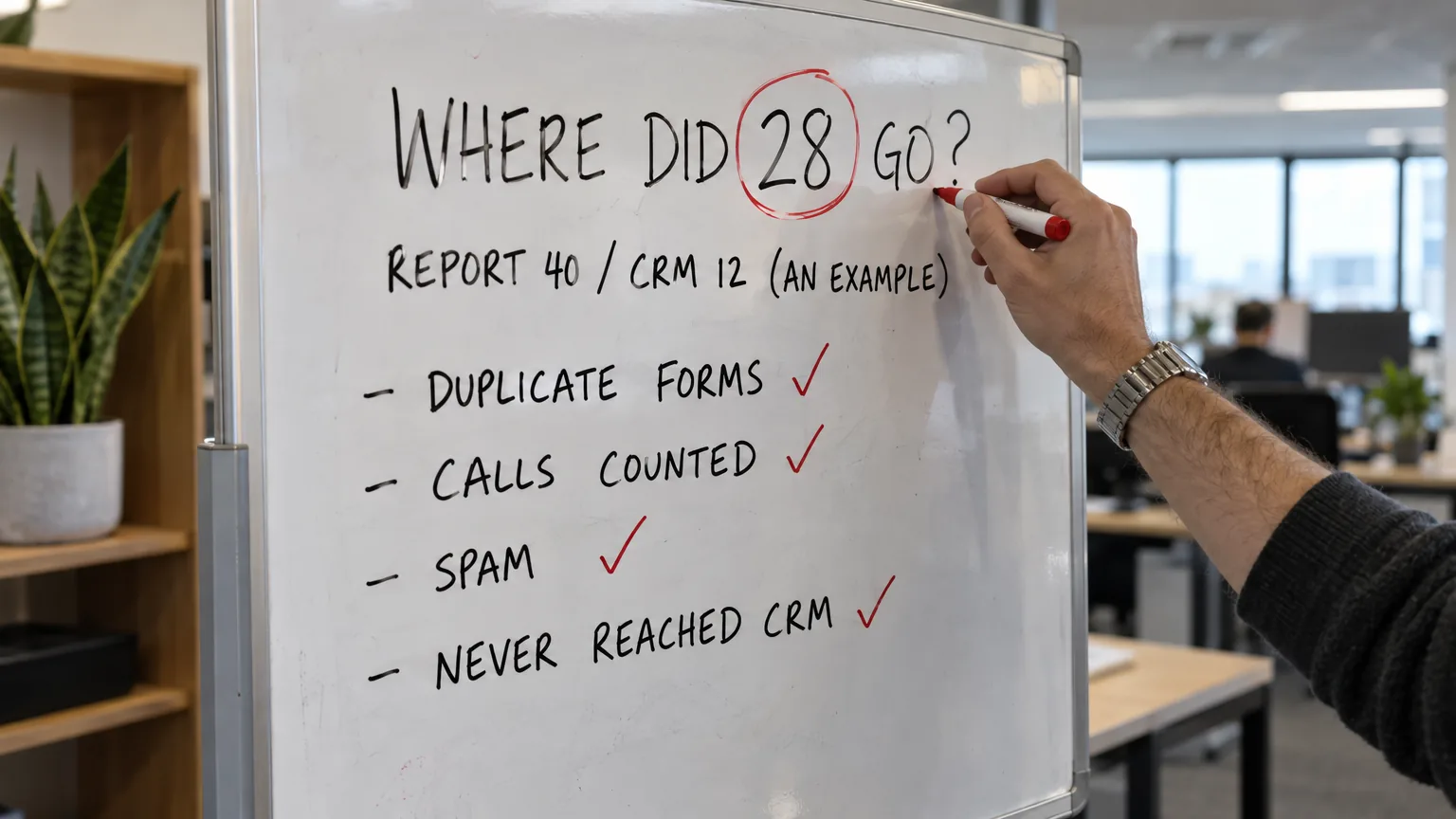
Your agency reports 40 leads for the month. You check your inbox and CRM and find 12 enquiries. So why don’t the numbers match?
Those figures are illustrative, but we’ve seen the problem in real accounts. In one law firm campaign we audited, the report showed 24 conversions. We could only verify nine as enquiries. The report and the business were counting different things.
We found a similar issue in a dental account audit published in August. Only three reported actions were genuine new-patient enquiries. The total also included directions clicks and a price-guide download.
The first step is to check what your report counts as a lead. Each check below shows you which screen to open, what to look for and what to change, so you can understand the gap in your own numbers.
Why don’t your agency’s lead numbers match your own?
Ad platforms count recorded actions. You’re counting people who got in touch. Depending on the account’s setup, a reported conversion could be a form submission, a tap on a phone number or a repeat enquiry from the same person. Spam and bot submissions can also inflate the total.
The gap can work both ways. An enquiry may reach your business without appearing in the platform’s report. A call goes untracked, a form never reaches the CRM or a signed client is never marked as won. Missing records can make a campaign look less effective than it really is.
We’ve seen both patterns in our audits. Understanding why Google, Meta, GA4 and your CRM report different numbers starts with checking what each system records—and what it misses.
The diagnostic table
Start with the symptom you can see, then read across.
The checks, one by one
1. Is the report quoting "All conversions"?
Google Ads reports primary conversion actions in the Conversions column when their standard goal is selected for bidding. Secondary actions appear in All conversions and are generally used for observation, with an exception for custom goals.
All conversions provides a broader total, including actions outside the main Conversions column. Depending on your setup, it can include view-through conversions, store visits and certain calls. A bigger total doesn’t necessarily mean more enquiries.
How to check:
- Open Campaigns in Google Ads and set the date range to last month.
- Select Columns → Modify columns → Conversions. Add both Conversions and All conversions.
- If your agency’s lead figure matches All conversions, ask for a breakdown by conversion action.
Our take: before accepting All conversions as a lead total, find out exactly what it includes.
2. Is each lead counted once or every time?
Google's conversion counting options let you count either one conversion or every conversion for each action after an ad interaction. For lead generation, One is usually the more useful setting.
With Every selected, repeat submissions can increase the total. Reloading a thank-you page can also trigger another conversion if the tracking setup allows it.
In the law firm campaign mentioned earlier, 15 of the 24 reported conversions were taps on a phone number. The action counted repeated taps after the same click, with no evidence a call followed.
How to check:
- Go to Goals → Conversions → Summary.
- Open each enquiry action and check its Count setting.
- For actions intended to measure a single enquiry per ad click, use One.
This setting isn’t a complete duplicate check. The same person can still appear across different conversion actions or separate ad clicks.
3. Are actions other than enquiries set as primary?
Under standard goals, primary actions are used for bidding when the campaign uses their goal. Secondary actions generally remain observational, unless they are included in a custom goal.
In our dental account audit, directions clicks were already secondary. Their inclusion inflated the reported lead total, but the secondary setting alone didn’t support a claim they were influencing bidding.
New campaigns also inherit account-default conversion goals unless campaign-specific goals are selected. An unsuitable goal can carry into new campaigns without anyone revisiting it.
How to check:
- On the conversion Summary page, review each action’s Primary or Secondary setting.
- Open each campaign’s Settings → Conversion goals.
- Check whether it uses account-default or campaign-specific goals, including any custom goals.
- Review the actions inside those goals and confirm which ones should guide bidding.
4. Are phone-number taps being reported as calls?
For click tracking on a mobile website, Google records taps on the number, rather than the calls themselves. Someone can tap without completing a call.
We explain the distinction in our call tracking guide for service businesses.
The fix: use call tracking to measure calls from ads or your website, with a minimum call duration suited to your business. Keep phone-number taps separate from confirmed calls and generally set them as secondary.
A duration threshold helps screen out very short calls. It still doesn’t establish whether the caller was a genuine prospect.
5. Are bots submitting your form?
Google’s guide to preventing invalid leads explains why its traffic filters cannot prevent every fake submission. Bots can still reach your website and complete a form. If the submission triggers your conversion tag, it can enter the reported total.
How to check: review last month’s CRM enquiries for meaningless names, repeated messages, suspicious email addresses and unusual bursts of submissions. Treat these as signs to investigate rather than automatic proof of spam.
The fix: combine form validation with spam protection. reCAPTCHA v3 assigns a risk score to each interaction; Google suggests starting with a threshold of 0.5 and adjusting it using your own traffic. A hidden honeypot field can provide another check.
Our take: report verified leads separately from raw submissions. Email or phone verification provides stronger evidence of a reachable person, although it doesn’t establish their intent to buy.
6. Is the same enquiry being recorded twice?
In one finance account we audited, two conversion actions fired for the same enquiry. Every lead appeared twice in All conversions.
Duplicate tracking can happen when the developer and agency each install an action, or when the same enquiry is measured through both a Google Ads tag and an imported Analytics event.
How to check:
- On the conversion Summary page, look for actions with similar names and near-identical totals.
- Use Google’s Tag Assistant while submitting a test enquiry.
- Check which tags and events fire, then review whether more than one conversion action records the same submission.
Similar totals are a clue. A test submission helps establish whether duplicate tracking is the cause.
7. Why do GA4 and Google Ads disagree?
GA4 key events and Google Ads conversions serve different reporting purposes. Counting settings, attribution, reporting dates and conversion windows can all affect the totals.
A difference alone isn’t proof of an error. Google’s data discrepancies guide recommends allowing 24–48 hours for processing and synchronisation before comparing results.
Test activity can widen the gap. In one law firm account, nine of the month’s ten GA4 referral conversions were associated with our team’s tools, a project management app and Tag Assistant. Our review identified them as testing activity rather than prospect enquiries.
The fix: define internal traffic in GA4 using your team’s IP addresses, and configure the developer traffic filter for debug sessions. Test the filters before activating them: excluded data cannot be recovered, and filters do not remove historical activity.
For one software client, our standing reporting rule is simple: debug sessions and landing-page previews never count as leads.
8. Is Meta combining Instant Form and website leads?
Meta’s reporting includes lead action categories covering different enquiry sources. Depending on the metric selected, a headline total can combine Instant Form submissions with website leads recorded through the pixel or Conversions API.
Instant Forms are completed within Meta. Those enquiries may never touch your website, so comparing the combined total with website submissions alone can create a misleading gap.
In the same finance account, an Instant Form campaign reported both types of lead. The split changed from month to month. Our rule since: report each source separately.
How to check: in Ads Manager, open Columns → Customise columns and search for lead metrics. Add separate metrics for Instant Form submissions and website leads, checking each metric’s description. Compare the Instant Form total with the enquiries downloaded or delivered to your CRM.
9. Are you comparing the same dates?
Standard Google Ads conversion columns attribute results to the ad interaction date. Your inbox records when the enquiry arrived.
A person could click in September and enquire in October. Depending on the conversion window, the enquiry may then appear against September’s advertising activity after the month has closed.
The fix: add the Conversions (by conv. time) column when comparing Google Ads with your inbox or CRM. It reports conversions by when they happened, making the dates easier to reconcile.
10. Did the form submission reach the CRM?
Before launching a software client’s campaign, we tested the landing-page form. It sent the submission to the CRM through a webhook, and the CRM returned a “success” response.
No contact appeared. The automation responsible for creating it hadn’t been switched on.
We caught the issue before the ads went live. The lesson: a successful webhook response confirms only one step in the process.
How to check: submit a test enquiry and follow it through. Confirm the contact appears in the CRM with the correct details, reaches the right person and triggers the expected notification.
The next check is what happens after the lead comes in: who takes responsibility, how quickly they respond and whether anyone follows up.
Test your enquiry form from start to finish
Isabella on our team suggested a simple check: be your own customer. Submit an enquiry and follow it from your website through to the CRM, the response and the report.
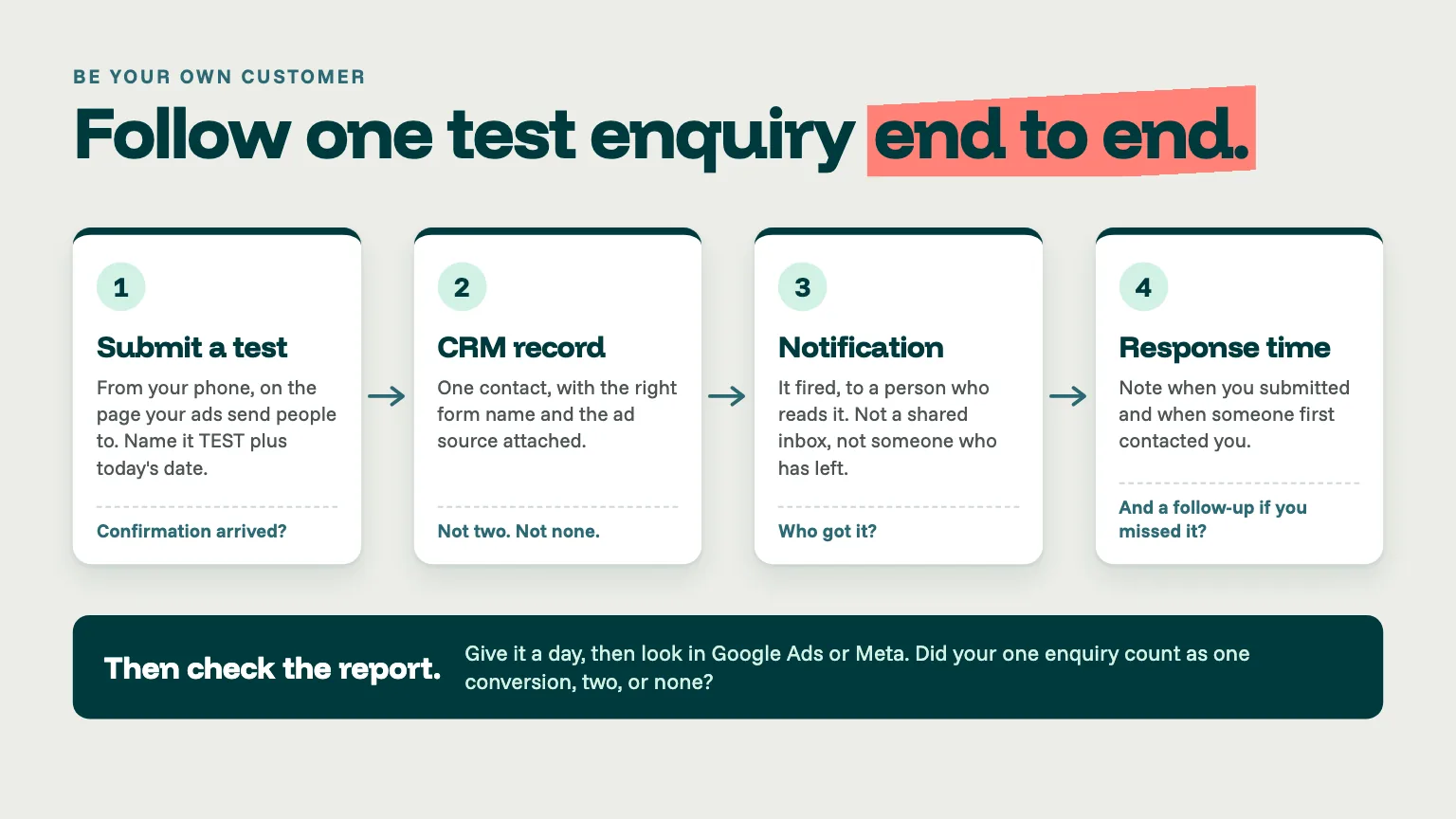
- Submit a test enquiry. Use your phone and the landing page your ads send people to. Enter “TEST” plus today’s date as your name. Let your agency and the person handling enquiries know beforehand, so they can identify the test and exclude it from lead reporting.
- Check the confirmation. Did a confirmation email or message arrive? Check your spam folder too. Does it explain what happens next?
- Find the enquiry in your CRM. Is there one contact with the correct details and form name? Check whether the source information available from your visit has carried through.
- Check the notification. Who received it? Confirm it reached someone responsible for responding, rather than an unmonitored inbox or a former employee.
- Time the response. Record when you submitted the form and when someone first contacted you.
- Check the follow-up. If you didn’t answer, did anyone try again?
- Check the reporting. Allow for processing time, then ask your agency which events and conversion actions the submission triggered. If the test involved an eligible ad interaction, check whether the platform attributed a conversion. A direct visit won’t necessarily appear as an ad conversion.
Our take: repeat this test after changes to your website, forms or CRM automations, and when a new agency takes over. The webhook example shows why: one system can report success while the enquiry never reaches the person responsible for it.
How we reconcile the numbers
For one law firm client, we’ve scoped a nightly check comparing the CRM with the booking calendar, phone system and signed agreements. Each records a different part of the customer journey, helping identify gaps the others miss.
The proposed first phase produces a report for someone to review before any automated changes are made to the CRM.
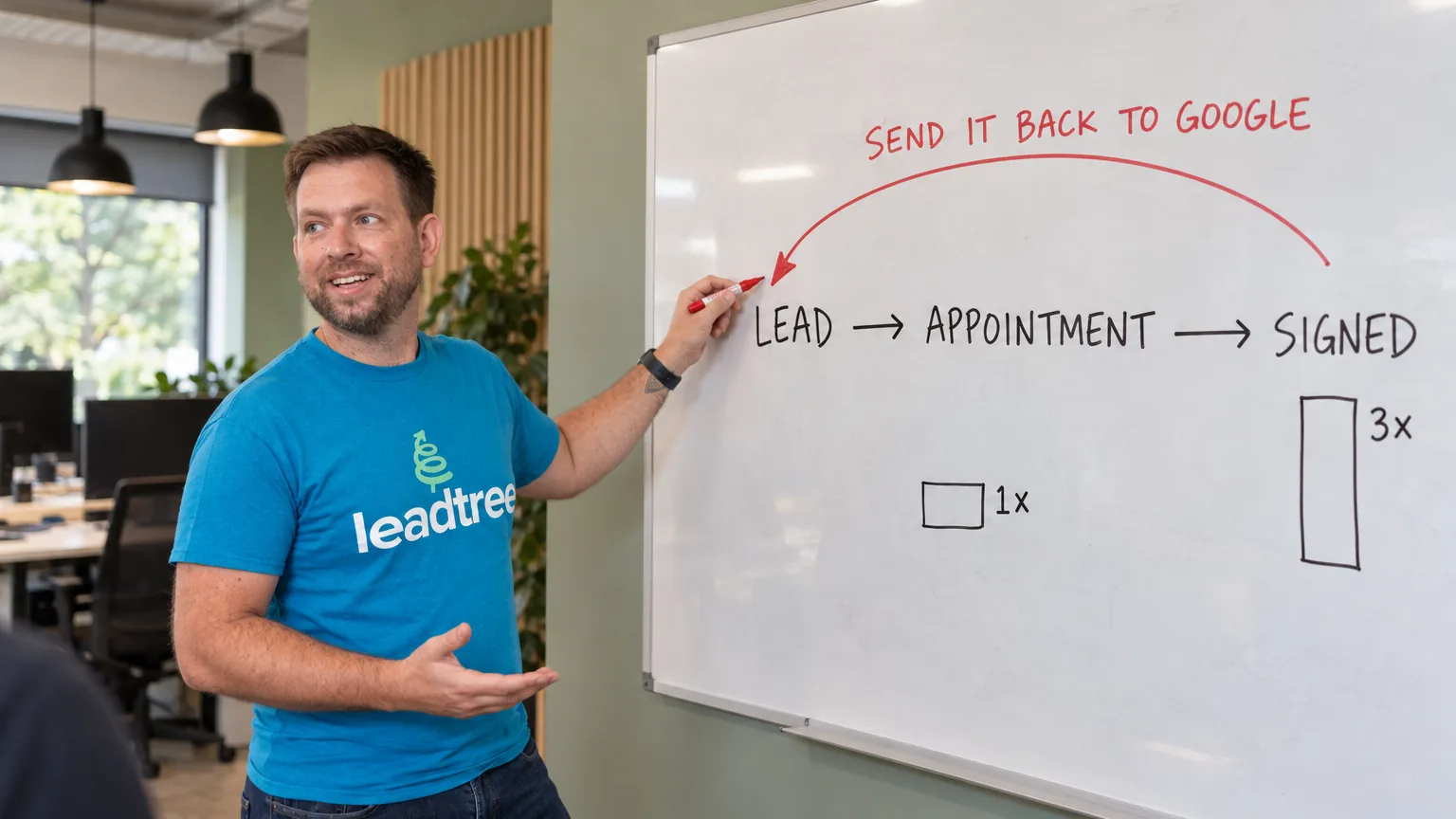
We already compare this client’s newly opened matters with its CRM records, name by name, each month. This uncovers gaps in the other direction: signed clients who were never marked as won in the CRM, leaving those outcomes missing from the data sent back to Google Ads.
Count enquiries and outcomes separately
A platform conversion records an action. A CRM enquiry records someone getting in touch. A signed agreement records a business outcome. Each answers a different question.
Compare platform conversions with CRM enquiries each month, then follow those enquiries through to bookings, signed clients or sales. Record a clear reason for each difference, such as repeat submissions, reporting dates, spam or missing records.
Our take: if a reported lead total contains unexplained discrepancies, resolve them before using it to guide bidding or budget decisions.
Where to start and what to ask your agency
If you have ten minutes, start in Google Ads. Put Conversions and All conversions side by side, then check the Count setting for each enquiry action. Both checks can be completed with read-only access.
Our take: if you do one thing this week, find out which column your lead total comes from.
Ask your agency:
- Which column supplies our reported lead total: Conversions or All conversions?
- Which actions are used for bidding, including through custom goals, and does each use One or Every?
- Do our phone conversions measure number taps or connected calls with a minimum duration?
- How do you identify and exclude spam, tests, duplicates and internal activity?
- When did you last compare the report with our CRM, and what explained the difference?
If your agency can’t tell you which conversion actions make up your lead total, treat that as a bigger issue than any single setting. A number nobody can break down is a number nobody has checked against your CRM.
A good agency should be able to explain its reporting clearly and show you the supporting records. If your agency’s numbers have never matched yours, understanding the gap gives you a stronger basis for the next budget conversation.
We’ll review your Google Ads and Meta accounts with you, compare reported conversions with enquiries recorded in your CRM, and investigate where the numbers diverge.
Book a time with Leadtree here: https://www.leadtree.agency/product/book-call